Connect your Shopify store
Let easymessage receive your store's orders, checkouts, shipments and customers.
Once connected, easymessage receives an event from Shopify every time an order is placed, a checkout starts, an order ships and so on. Flows react to those events.
Connect with the easymessage app
- In easymessage, open Connections and expand Shopify store.
- Type your store address — the one ending in
.myshopify.com— and click Connect Shopify. - Shopify asks you to approve the permissions. Click Install.
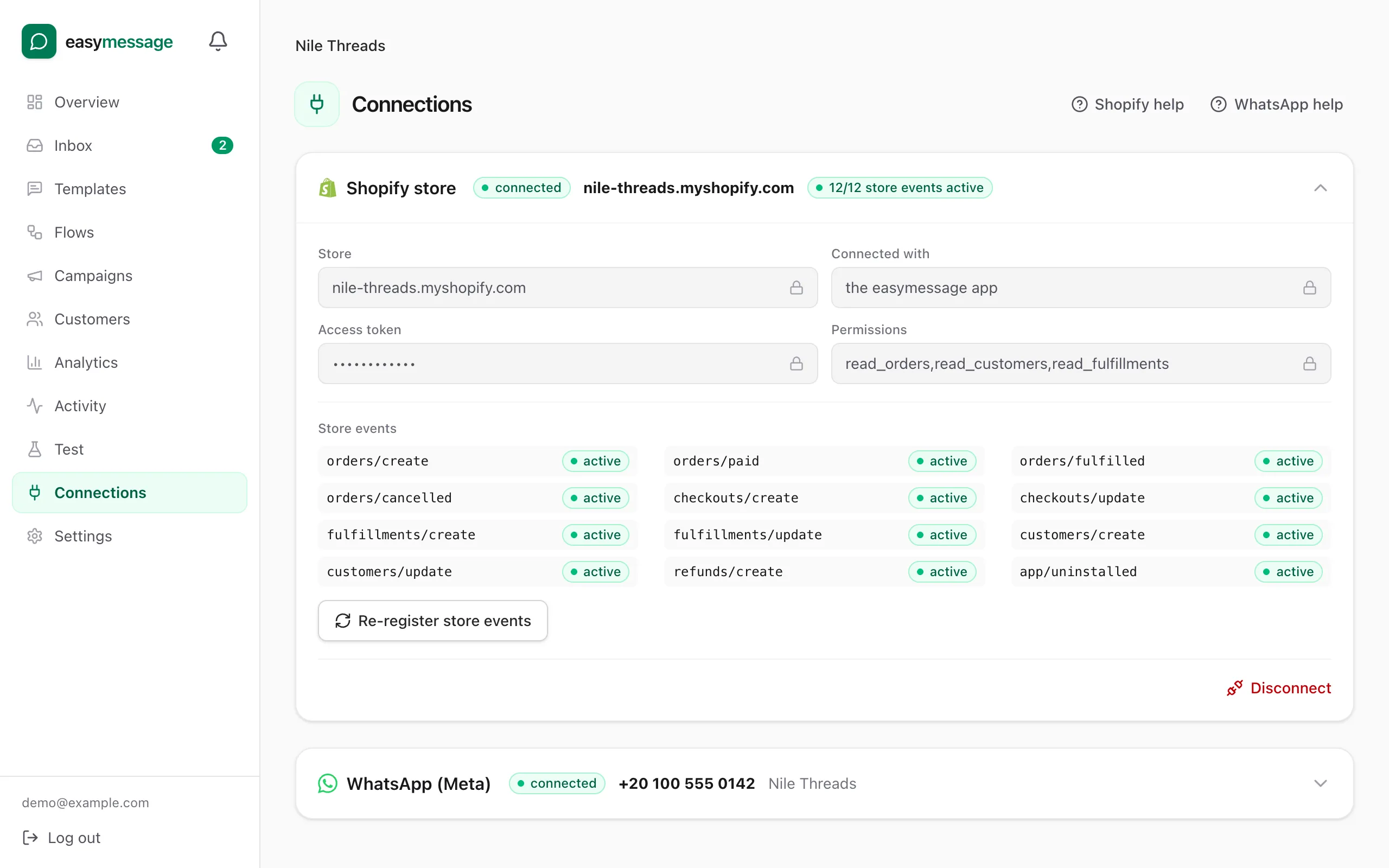
- You're sent back to Connections, and the card shows connected.
Or: use your own Shopify app
If the Connect with the easymessage app box isn't shown, connect a custom app you create in your Shopify account. The How to set up your Shopify app box on the Connections page shows the exact values to copy.
- In the Shopify Dev Dashboard, create an app with Custom distribution.
- In its configuration, paste the App URL, the Allowed redirection URL and the Compliance webhooks URL shown on the Connections page. Leave Embed app in Shopify admin off.
- Copy the access scopes shown on the page into the app's scopes.
- If API access requests shows Request access for protected customer data, request Name, Phone and Address.
- Release the version and install the app on your store.
- Back in easymessage, paste the Client ID and Client secret and click Connect. If Shopify says the store isn't permitted, click Approve in Shopify instead.
Check it worked
Under Store events, every event should show active. If one shows an error, click Re-register store events.
Still stuck? Contact us — tell us what you tried and what you see, and we'll help you finish the setup.