The flow builder
Build an automation from a trigger, conditions, waits and messages.
A flow starts with a Trigger (a Shopify event) and runs each step below it in order, for every customer the event is about.
- Open Flows and click Create flow.
- Click the Trigger and choose the Shopify event, for example Order placed.
- Click + under a step to add the next one, and set it up in the panel on the right.
- Name the flow, switch it to Live when it's ready, and click Save.
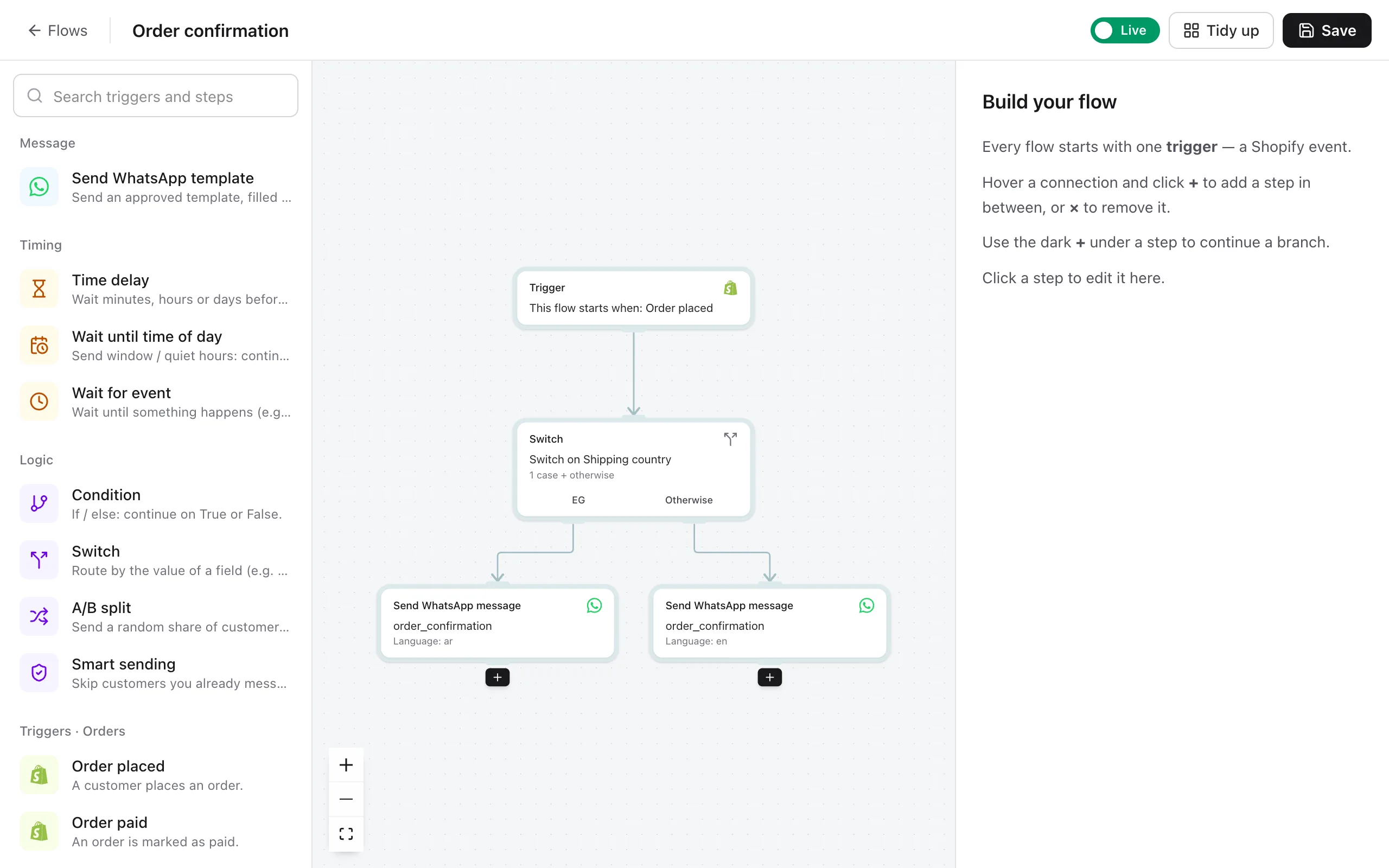
Steps
| Step | What it does |
|---|---|
| Send WhatsApp template | Sends an approved template, filled with store data. |
| Time delay | Waits minutes, hours or days. |
| Wait until time of day | Continues at a set time on chosen days, for example to avoid sending at night. |
| Wait for event | Waits until something happens (such as an order being placed) or until time runs out. |
| Condition | If/else: continues on True or False. |
| Switch | Takes a different path for each value of a field, such as country or payment method. |
| A/B split | Sends a random share of customers down each path to compare two messages. |
| Smart sending | Skips customers you've already messaged recently. |
Problems are checked when you save
When you click Save, easymessage checks the flow. It catches a missing template, an unapproved template, an empty variable or a step that isn't connected. Problems show as red icons on the step. Click a step to see what to fix.
Still stuck? Contact us — tell us what you tried and what you see, and we'll help you finish the setup.